Unlock Efficiency with Excel Automation Solutions
In today's fast-paced world, efficiency is key to staying competitive. Many professionals find themselves overwhelmed by repetitive tasks that consume valuable time and resources. Fortunately, Excel automation solutions can help streamline these processes, allowing you to focus on what truly matters. This blog post will explore how you can unlock efficiency through Excel automation, providing practical examples and tips to enhance your productivity.
Understanding Excel Automation
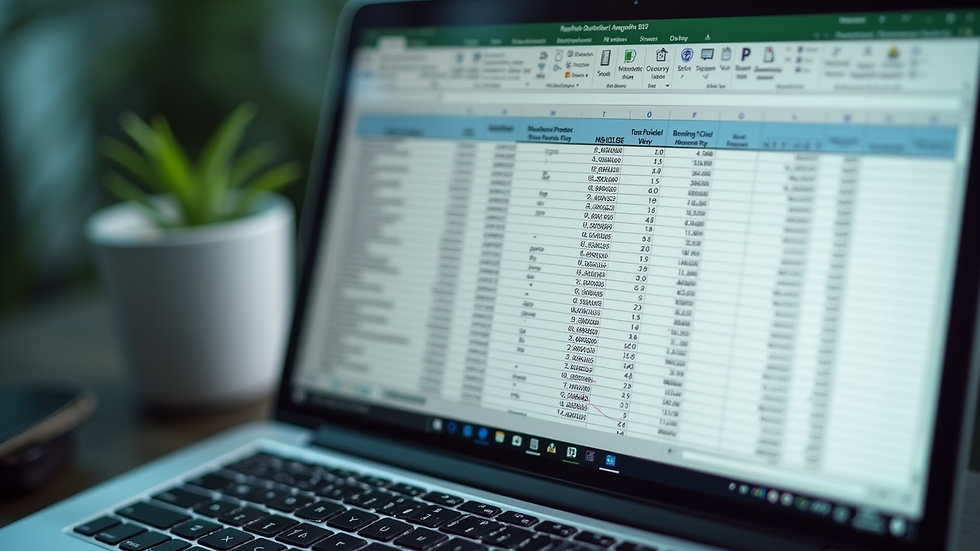
Excel automation refers to the use of tools and techniques to automate repetitive tasks within Excel spreadsheets. This can include anything from simple formulas to complex macros and scripts. By automating these tasks, you can reduce the time spent on manual data entry, calculations, and reporting.
Why Automate?
Time Savings: Automation can significantly reduce the time spent on repetitive tasks, allowing you to allocate your time to more strategic activities.
Accuracy: Automated processes minimize the risk of human error, ensuring that your data is accurate and reliable.
Consistency: Automation helps maintain consistency in your data processing, which is crucial for reporting and analysis.
Scalability: As your data grows, automated solutions can easily scale to handle larger datasets without additional effort.
Common Excel Automation Techniques
1. Formulas and Functions
Excel offers a wide range of built-in formulas and functions that can automate calculations and data manipulation. Here are some commonly used functions:
SUM: Adds up a range of numbers.
AVERAGE: Calculates the average of a set of values.
VLOOKUP: Searches for a value in one column and returns a corresponding value from another column.
IF: Performs a logical test and returns one value for a TRUE result and another for a FALSE result.
Example: If you have a sales dataset and want to calculate the total sales, you can use the SUM function to automate this calculation.
2. Macros
Macros are a powerful feature in Excel that allows you to record a series of actions and replay them with a single command. This is particularly useful for repetitive tasks that require multiple steps.
How to Create a Macro:
Go to the "View" tab and click on "Macros."
Select "Record Macro."
Perform the actions you want to automate.
Stop recording when finished.
Example: If you frequently format reports in a specific way, you can record a macro to apply that formatting automatically.
3. Power Query
Power Query is a data connection technology that enables you to discover, connect, combine, and refine data across a wide variety of sources. It is particularly useful for automating data import and transformation processes.
Example: If you regularly import data from a CSV file, you can set up a Power Query to automatically pull in the latest data and apply any necessary transformations.
4. VBA (Visual Basic for Applications)
For more advanced automation, you can use VBA to write custom scripts that perform complex tasks. VBA allows you to create user-defined functions, automate repetitive tasks, and interact with other applications.
Example: You can write a VBA script to generate a monthly report that pulls data from multiple sheets, performs calculations, and formats the report automatically.
Implementing Excel Automation Solutions
Step 1: Identify Repetitive Tasks
Start by identifying the tasks that consume a significant amount of your time. These could include data entry, report generation, or data analysis. Make a list of these tasks to prioritize which ones to automate first.
Step 2: Choose the Right Tools
Depending on the complexity of the tasks you want to automate, you may choose different tools:
For simple calculations, use built-in formulas.
For repetitive actions, consider using macros.
For data import and transformation, explore Power Query.
For advanced automation, dive into VBA.
Step 3: Test and Refine
Once you have set up your automation solutions, test them thoroughly to ensure they work as expected. Make any necessary adjustments to improve efficiency and accuracy.
Step 4: Document Your Processes
Documenting your automation processes is crucial for future reference and for training others. Create clear instructions on how to use the automation tools you’ve implemented.
Real-World Examples of Excel Automation
Example 1: Sales Reporting
A sales team spends hours each week compiling data from various sources to create a sales report. By implementing Excel automation, they can use Power Query to pull data from their CRM system and automate the report generation process. This not only saves time but also ensures that the data is always up-to-date.
Example 2: Inventory Management
A small business owner manually tracks inventory levels in Excel, leading to frequent errors and stockouts. By using macros, they can automate the process of updating inventory levels and generating reorder alerts. This allows them to maintain optimal stock levels without constant manual oversight.
Best Practices for Excel Automation
Start Small: Begin with simple automation tasks before moving on to more complex solutions. This will help you build confidence and understand the capabilities of Excel.
Keep It Simple: Avoid overcomplicating your automation solutions. Simple, clear processes are easier to maintain and troubleshoot.
Regularly Review and Update: As your needs change, regularly review your automation solutions to ensure they remain effective and relevant.
Seek Training: Invest time in learning more about Excel automation techniques. Online courses and tutorials can provide valuable insights and skills.
Conclusion
Excel automation solutions can significantly enhance your efficiency, allowing you to focus on higher-value tasks. By understanding the various techniques available and implementing them effectively, you can transform the way you work with data. Start by identifying repetitive tasks, choose the right tools, and take the first steps toward a more automated workflow. Embrace the power of Excel automation and unlock your potential for greater productivity.
Now that you have the knowledge to get started, why not take the first step today? Explore the automation features in Excel and see how they can benefit your workflow.
Comments